TUI
redi --tuiThe command line is fine for a single lookup, but when you want to read, create and update in one sitting, the TUI is the more convenient way in. It lets you move between an issue, its comments and the time logged against it while editing them.

Three tabs, switched with Tab / Shift-Tab. The header shows the current tab, the profile
and the project you are looking at.
Issues
Section titled “Issues”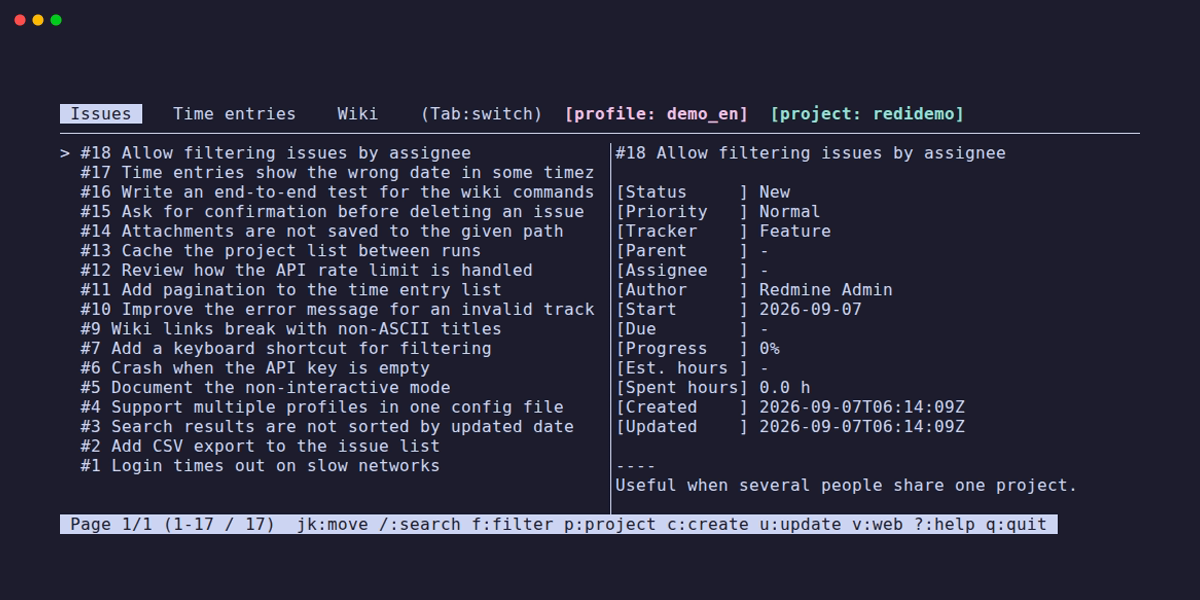
Time entries
Section titled “Time entries”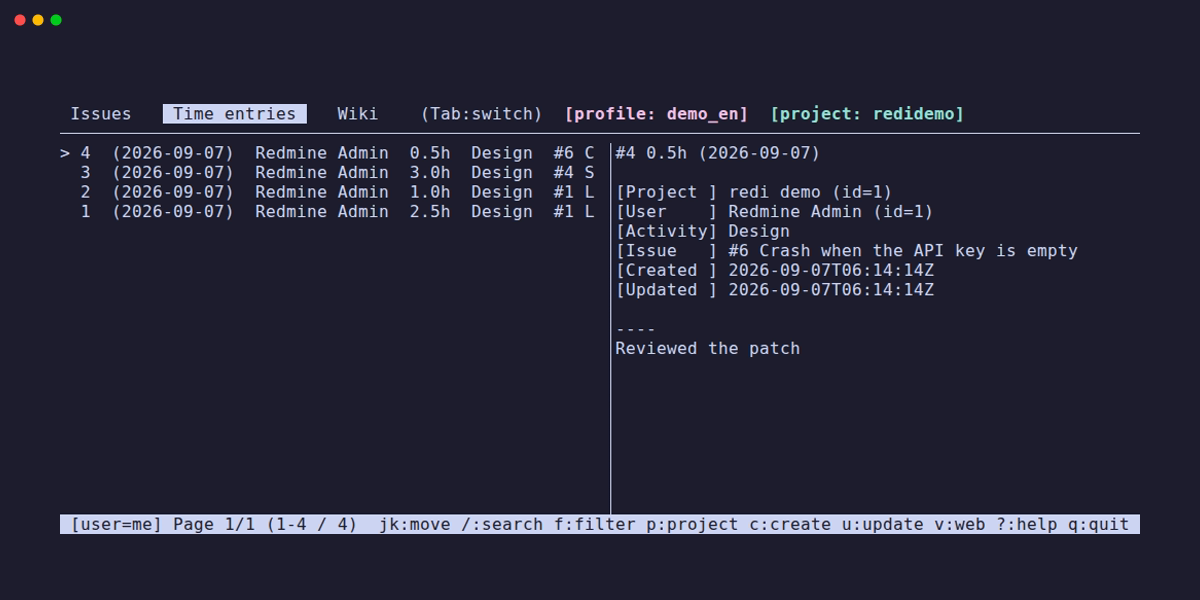
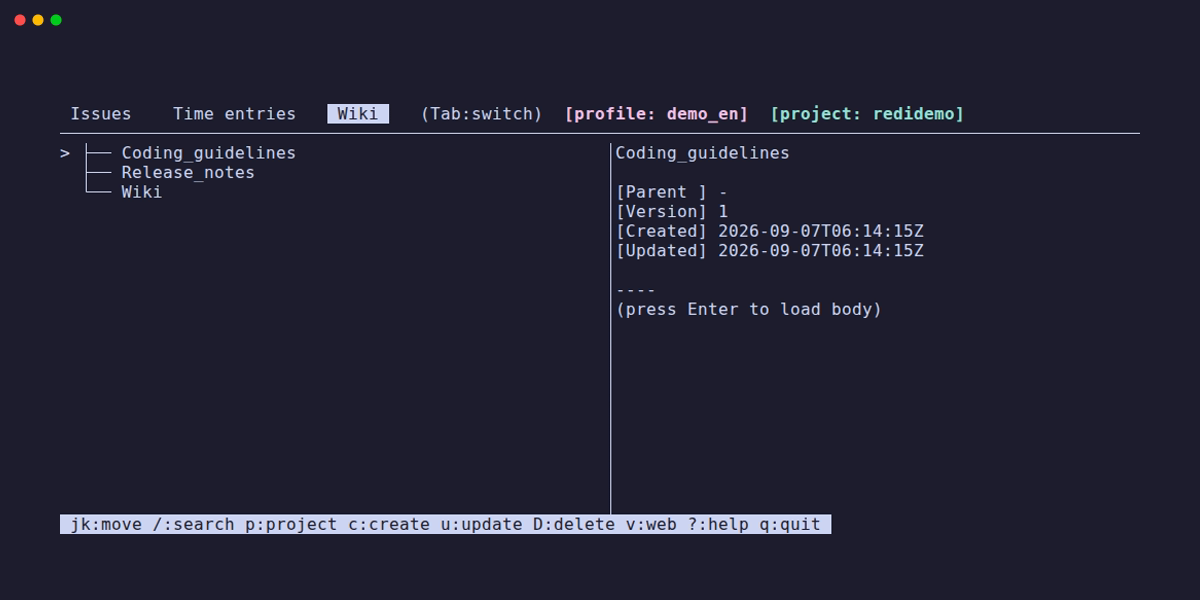
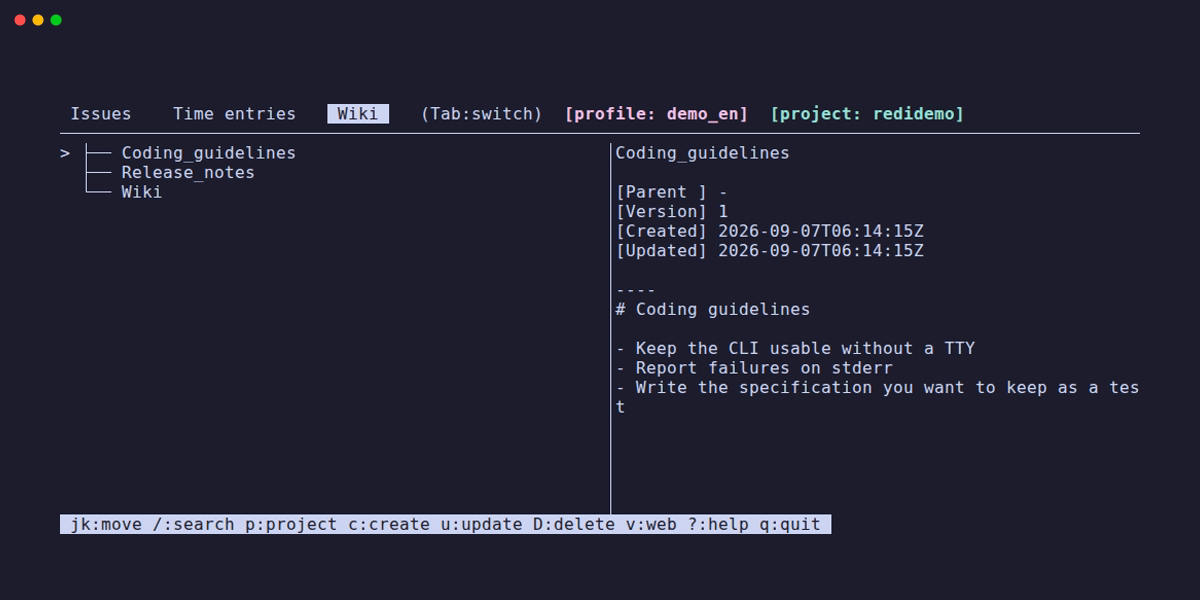
Pages are shown as a tree. To keep the tab responsive, the body is not fetched until you
press Enter — until then the right pane shows only the metadata.
Search
Section titled “Search”Press / and type. Matches are highlighted in the list as you type, and n / N move
between them.
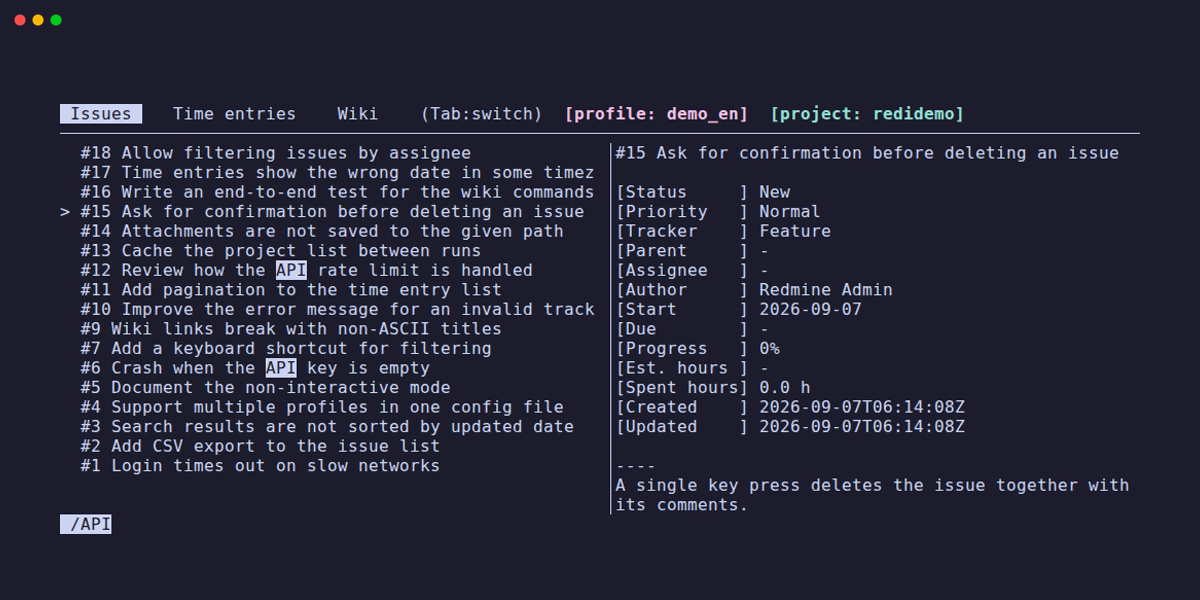
/ searches the issues that are already loaded. To search the whole project on the server,
use F instead.
Filter
Section titled “Filter”Press f. Four columns — status, assignee, tracker and saved queries — moved between with
Tab / h / l.
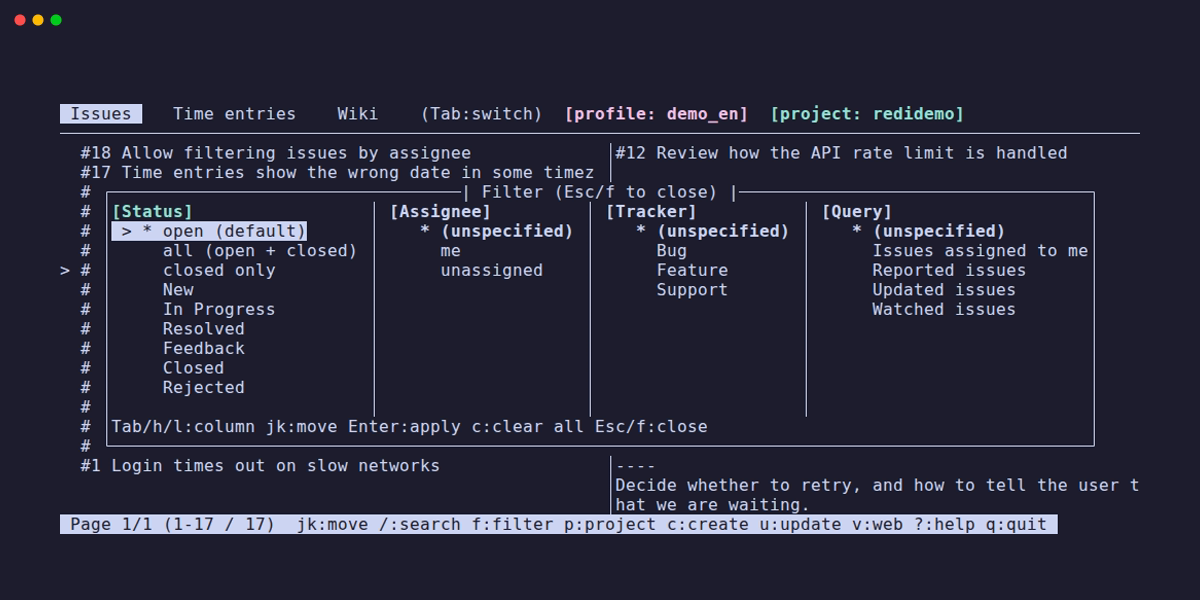
Enter applies the filter and c clears every column at once. The filter that is in effect
stays visible in the status bar.
The keys follow vim. j / k to move, gg / G for top and bottom, / to search.
Whatever is available in the current tab is always shown in the status bar at the bottom:
jk:move /:search f:filter p:project c:create u:update v:web ?:help q:quitPress ? for the help of the current tab.
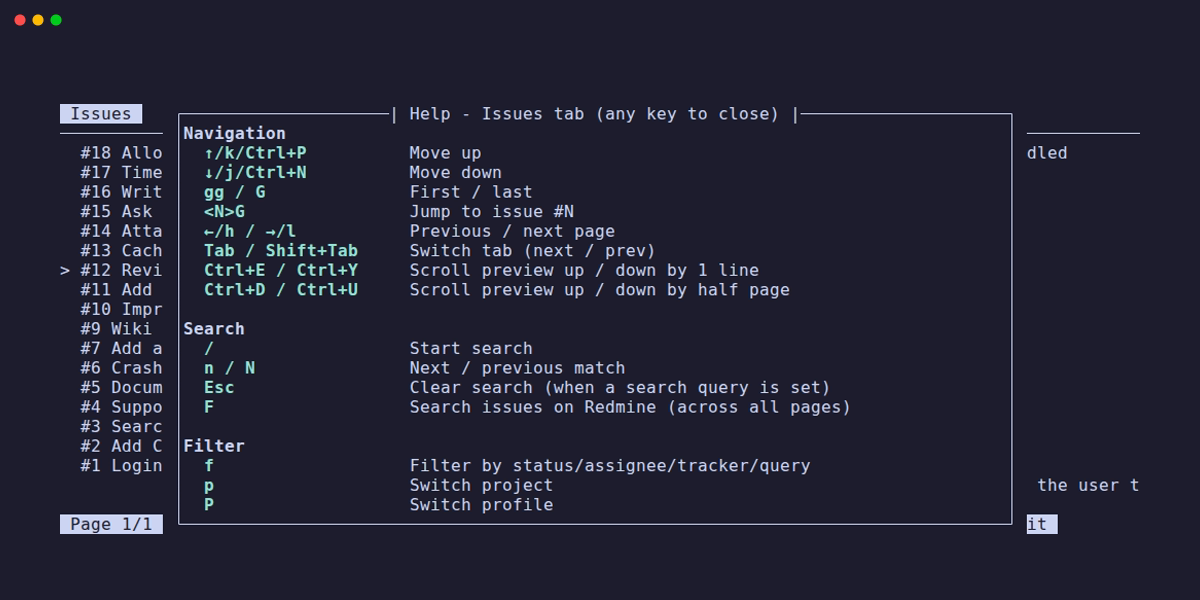
Only the keys used most often are listed here.
| Key | |
|---|---|
j / k |
Move down / up |
gg / G |
Jump to top / bottom |
Ctrl-d / Ctrl-u |
Half page down / up |
Enter |
Open the selected item |
/ |
Search within the list |
n / N |
Next / previous match |
F |
Search issues on the server |
f |
Filter |
p |
Switch project |
P |
Switch profile |
c |
Create |
u |
Update |
D |
Delete |
v |
Open the item in a browser |
? |
Help for the current tab |
q |
Quit |
The movement keys and a few others can be experienced in the browser on the TUI playground.